
EstVis software key features
What EstVis actually does between the assignment landing and the keys going back, feature by feature, on the shop floor rather than on a slide.
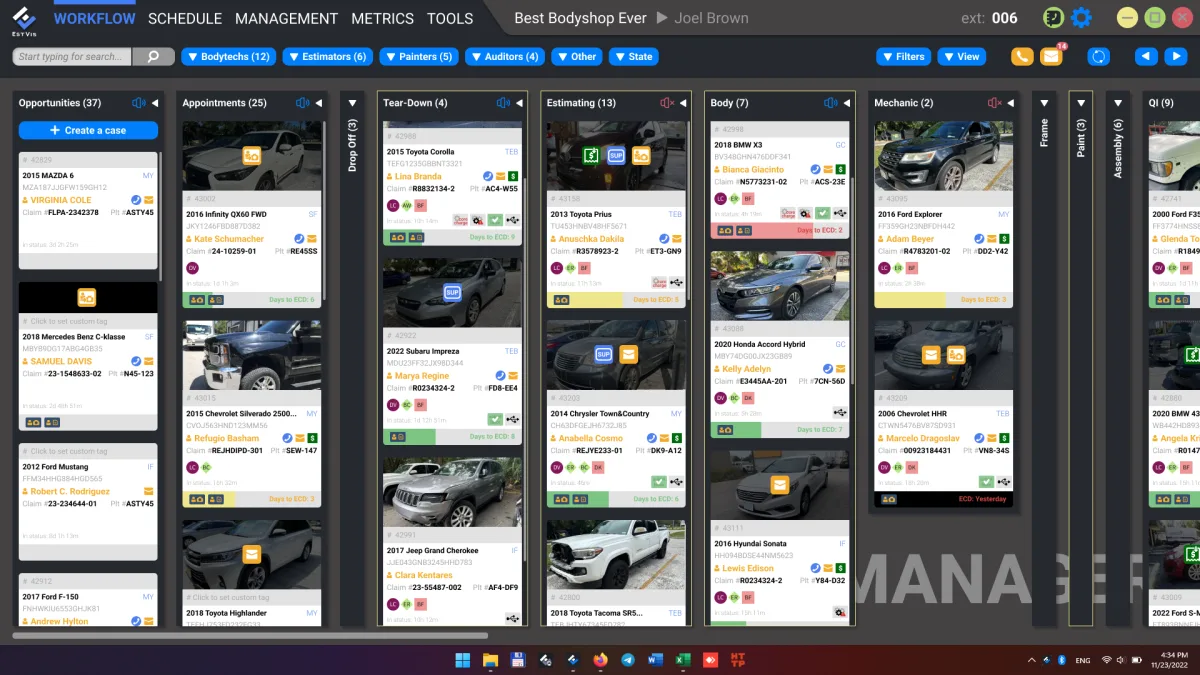
EstVis runs the back office of a collision shop from the moment an assignment lands to the moment the customer drives away: cases, photos, estimates, parts, invoices, payroll, customer messages and the accounting behind them. It runs on a Desktop Server in your own building, so shop operations keep going when the internet does not. Here is what each piece does.
Every car on one board
Workflow shows each case as a card in a bucket you defined: Opportunities, Drop-off, Tear Down, Assembly, Paint, Completed, Picked Up, or whatever your shop calls its stages. Drag a card to move the job. Open it and you get the vehicle, the customer, the estimate lines, the photos grouped by category, every invoice, every message and every call on that RO in one place.
Staff are assigned per case or per estimate line: estimator, bodytech, painter, auditor. A photo of the VIN plate fills in make, model, year and VIN. A scan of the driver's license barcode fills in the customer.
The Work Authorization is signed before the car arrives
The moment a case is created, by hand or by import, EstVis generates the paperless Work Authorization as a PDF with everything it already knows filled in: first and last name, cell phone, email, address, make, model, year, VIN, claim number.
The customer gets a link to a web page, reads the form, corrects anything wrong and signs it there. The signed PDF is saved to the case documentation folder. Nothing is printed, and at drop-off the customer hands over the keys and nothing else. Staff can also generate a WA in the Mobile Client and fill it in on the floor with the customer standing there.
Photos taken in the order the insurer asks for them
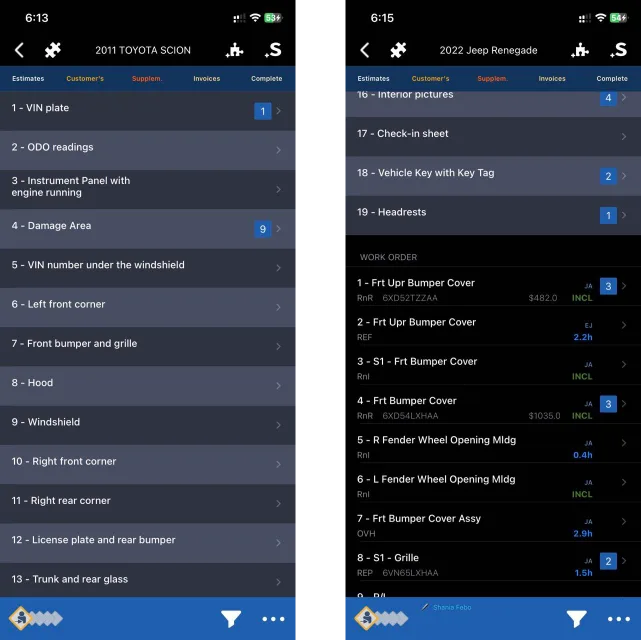
Pick the preliminary photo template for that insurance company, or the default one, and the app walks whoever is holding the phone through each shot in order. Estimate-line photos, supplement photos and complete photos work the same way. Each photo files itself into the right category on the case with the description insurers expect, so nobody renames files or sorts folders afterwards.
Estimates arrive on their own
EstVis imports assignments and estimates automatically from CCC ONE®, Mitchell® and Audatex®, every few minutes. No one re-keys a workfile.
In the Estimate section every line shows its description, operation, labor type, estimated time, part number and price. From there you can:
- assign an employee to a single line or to a whole labor group;
- export a per-employee work plan to Microsoft® Excel;
- flip a line to sublet labor and schedule it;
- send a part request to a vendor you added in Workflow;
- fire custom actions automatically when your conditions match.
Invoices you photograph instead of type
Vendor invoices do not need to be walked to a desk. Open the Mobile Client on iOS or Android, use the scanner, and the invoice is saved to the case folder. Workflow then recognizes it and posts most of the data without manual entry.
The parts list on each case shows number, description, quantity, price and total, color-coded so the state of every part is readable at a glance: grey not ordered, light green ordered or expected, green received. When a new estimate imports, EstVis checks the aftermarket for a cheaper equivalent and marks the case and the line if it finds one.
Parts change hands by QR code. The receiving tech scans the code on the transferring tech's phone, and the transfer goes into a history the manager can open later.
Payroll that keeps up with the board
As cases move from one bucket to the next, EstVis calculates and generates the payrolls. The Payrolls section shows total hours, hours left to pay and hours that become payable once the work is finished, color-coded by state: blue paid, green unpaid, red overpaid. Any of them can be exported to a file or printed.
The calculation logic is configurable down to your own bonus rules and rates, because no two shops pay the same way.
The customer hears from you without anyone calling
From the assignment landing to the feedback request seven days after the first Complete photo, the customer communication pipeline sends its own SMS and email: the damage-photo and Work Authorization request, a repeated request if there is no answer, a note when a flagged part arrives, a status update every time the case moves to a bucket you marked, and a ready-for-pick-up message with the deductible and betterment values and a PayPal® link.
You do not have to wait for the car to start the job. With the damage photos and the signed Work Authorization already on the case, the estimator can pre-estimate and order parts before the vehicle is ever dropped off, which takes the waiting out of the time it spends in your shop.
The customer's side of that is three steps:
- They give you a cell number or an email, and get an automatically generated message with a link, written instructions and a video tutorial.
- The link opens a page that shows them, step by step, which parts of the vehicle to photograph: the damage from several angles, and the VIN plate.
- The photos land in the case folder in the format your staff already works with, and the estimator can start.
When the customer calls, the Asterisk VoIP integration pops their name, their vehicle, the claim and the current repair status on screen, so whoever answers can greet them by name and tell them where the car is. Calls are recorded into the case folder, and callback is one click from the case.
Drop-offs and pick-ups on one calendar
The Schedule tab keeps unscheduled cases on the left and the calendar on the right, in month or week view. Appointments are color-coded by damage level, so a heavy job and three light ones can be balanced across the same day instead of colliding in it. Customer self-scheduling is optional: enable it and customers pick their own drop-off slot out of the Work Authorization and damage-photo flow. Reminders go out to them and to your staff automatically.
Notes, tasks and supplements that reach the right person
Workflow carries an internal messenger for shop staff. Notes attach to the case, and tasks go straight to the colleague you mention in them.
Supplements start on the floor. When a bodytech uploads a photo to a case, the estimator and the other workers are notified and an icon appears on the case marking that a supplement was added. You can also have EstVis email the estimator the supplement details.
Checks that have to be answered before a case moves
Quality control checklists fire on a bucket, either when a case leaves it or when it arrives. Questions can be yes/no, a whole number, a fraction, free text or an uploaded image, and each field can be required or optional.
Who completed the checklist, when, and with what answers is logged in the database and readable from Case History, and a PDF copy goes into the case result folder. That is the audit trail when an insurer or a customer asks what was checked.
Assignments in, documentation out
An assignment created by the insurance company becomes a case in your Opportunities bucket on its own, and if it carries the customer's cell phone or email, the damage-photo and Work Authorization request goes out without anyone touching it. Sending documentation back is one action: EstVis prepares the files to that insurer's requirements and puts the descriptions on the corresponding photos.
The reports that show where the money went
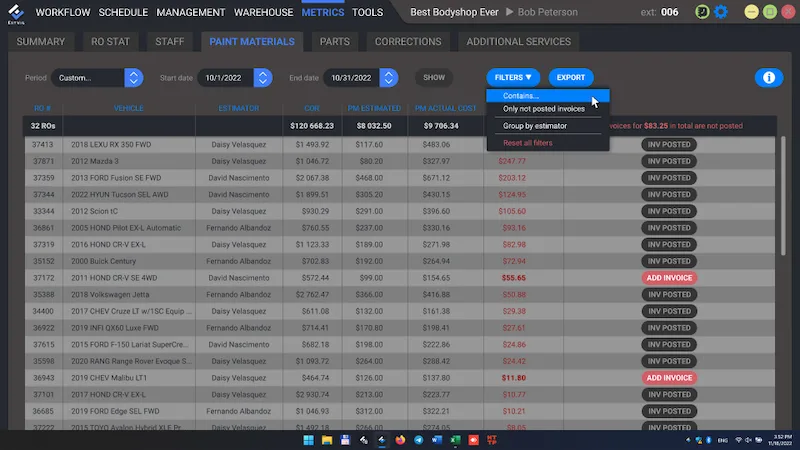
Paint Materials compares what the estimate allowed for paint materials against what the job actually consumed, which EstVis knows because it reads the invoice from your PPG®, Axalta® or BASF® mixing system. Watch for the red mark on the case in Workflow: it means actual consumption ran past the estimated value and the additional expense needs to be invoiced.
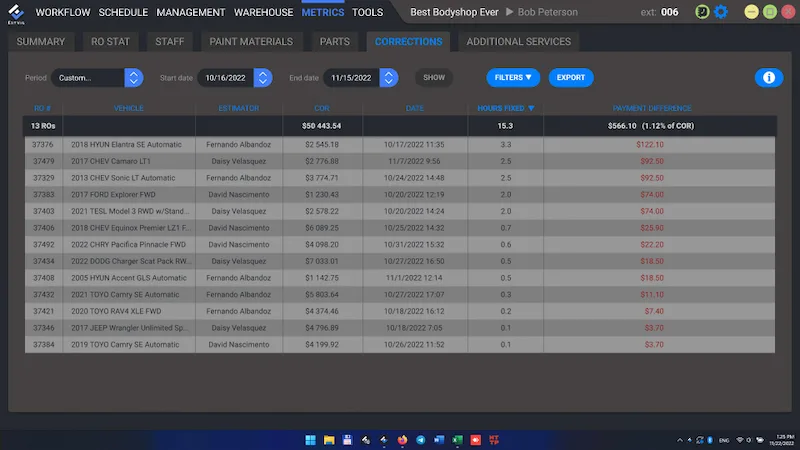
Corrections shows the labor hours recovered from estimating-system inaccuracy and the payment difference that came with them. Estimating systems label body and refinish labor incorrectly, cut labor time, and leave mechanical labor unselected on lines where it belongs. On a refinish line that also costs you the compensation for the additional paint materials.
The mechanical side of that is the Mechanical Labor Recovery audit, which runs on every estimate. A line is flagged when its component type is mechanical, its labor type is not mechanical, and it carries non-zero billable hours. The mechanical rate runs $30 to $60 an hour above the body rate in most shops, so every hour left on the wrong type ships to the insurer at the lower one. EstVis flags the line with the vehicle, claim number, description, operation, the wrong labor type and the hours at stake. Your team files the supplement in CCC ONE: EstVis surfaces what needs editing, it does not edit the estimate.
Additional Services counts what customers bought and what it brought in. EstVis sends the menu of paid extras – car wash, interior vacuum, headlight restoration, wheel alignment – when a case reaches a bucket you pick, Assembly for instance. The customer selects, signs an auto-generated PDF approval and gets a confirmation. No advisor makes the pitch.
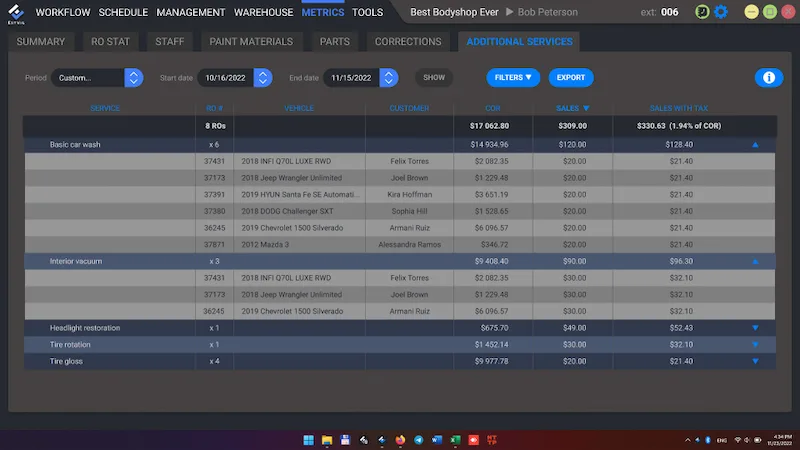
The service list, the prices, the text and title of the offer message, and the bucket that triggers it are all set in your company account settings.
Materials counted instead of guessed
Every supply into the warehouse and every issue out of it is recorded, so stock is a number rather than a hunch. Any employee can check from the app whether a material or a part is on the shelf before crossing the shop to look.
The books
Payroll keeps the record of paid work by hour or by percentage, with total hours and hours left to pay. Invoice keeps parts received grouped by supplier, and an accounting period can be closed to reconcile settlements with them. Payment tracks what has been paid on each repair and raises the alarm on delays by itself. QuickBooks pushes invoices and repair payments into QuickBooks® so nothing is entered twice.
Installing and configuring all of it takes about 15 minutes, and shops report their staff being comfortable in two or three days. The first month is free and asks for no credit card. If you want the payback math first, run your own RO count through the profit recovery calculator or see what the packages cost on the pricing page.